总览
改键不要直接改 UInputMappingContext::MapKey 当存档。UE5.8 的推荐路径是 UEnhancedInputUserSettings。它会为每个 Local Player 保存 UEnhancedPlayerMappableKeyProfile,每个 Profile 里有多行 FPlayerKeyMapping,每行按 Mapping Name 管理多个 Slot。
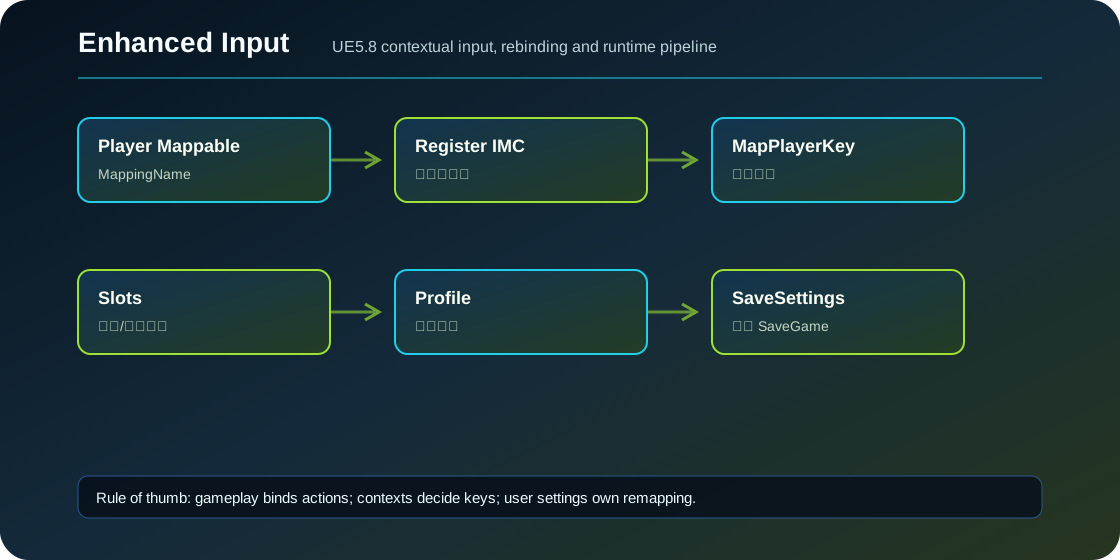
第一步:开启 User Settings
Project Settings > Engine > Enhanced Input:
- 开启
Enable User Settings。 User Settings Class用默认UEnhancedInputUserSettings,或换成自己的子类。Default Player Mappable Key Profile Class用默认 Profile,或换成自己的 Profile 子类。Input Settings Save Slot Name默认是EnhancedInputUserSettings,会写到 Saved/SaveGames。
源码里 UEnhancedInputUserSettings 继承 USaveGame,提供同步 SaveSettings 和异步 AsyncSaveSettings。
第二步:让映射可改
在 Input Action 或具体 Action Key Mapping 上添加 Player Mappable Key Settings。关键字段:
| 字段 | 用途 |
|---|---|
| Name | 保存用唯一 MappingName,例如 Input.MoveForward |
| DisplayName | UI 显示名,例如“向前移动” |
| DisplayCategory | UI 分类,例如“移动” |
| Metadata | 可放图标、提示、能力资产等 |
| SupportedKeyProfileIds | 只在某些 Profile 下启用 |
FEnhancedActionKeyMapping 有 SettingBehavior:继承 Action 设置、覆盖 Mapping 设置、忽略设置。W 和 UpArrow 都属于“向前移动”时,可以让它们共享 MappingName 但处于不同 Slot。
第三步:注册 IMC
改键 UI 要知道项目里有哪些可改键。可以显式注册:
UEnhancedInputUserSettings* Settings = Subsystem->GetUserSettings();
Settings->RegisterInputMappingContext(DefaultMappingContext);
也可以在 AddMappingContext 时使用:
FModifyContextOptions Options;
Options.bNotifyUserSettings = true;
Subsystem->AddMappingContext(DefaultMappingContext, 0, Options);
注册 IMC 后,Settings 会遍历 Context 里所有 Player Mappable 映射,在当前 Profile 创建 FPlayerKeyMapping。
第四步:执行改键
FMapPlayerKeyArgs Args;
Args.MappingName = TEXT("Input.Jump");
Args.Slot = EPlayerMappableKeySlot::First;
Args.NewKey = EKeys::SpaceBar;
Args.bCreateMatchingSlotIfNeeded = true;

FGameplayTagContainer FailureReason;
Settings->MapPlayerKey(Args, FailureReason);

if (FailureReason.IsEmpty())
{
    Settings->ApplySettings();
    Settings->SaveSettings();
}
Slot 用来支持一个动作多个键位。常见 UI 是第一键位和第二键位:First 是主键,Second 是副键。Unmap 时用同样的 MappingName 和 Slot:
Settings->UnMapPlayerKey(Args, FailureReason);
Settings->ApplySettings();
Settings->SaveSettings();
查询当前键位
FPlayerMappableKeyQueryOptions Query;
Query.MappingName = TEXT("Input.Jump");
Query.SlotToMatch = EPlayerMappableKeySlot::First;

TArray<FKey> Keys;
Settings->GetActiveKeyProfile()->QueryPlayerMappedKeys(Query, Keys);
如果要显示设置页,通常遍历 GetActiveKeyProfile()->GetPlayerMappingRows(),按 DisplayCategory 分组,把每个 Row 的 Slot 显示成按钮。
重置默认
重置单行动作:
Settings->GetActiveKeyProfile()->ResetMappingToDefault(TEXT("Input.Jump"));
Settings->ApplySettings();
Settings->SaveSettings();
重置整个 Profile:
FGameplayTagContainer FailureReason;
Settings->ResetKeyProfileIdToDefault(Settings->GetActiveKeyProfileId(), FailureReason);
注意 UE5.8 里 ProfileIdString 是推荐字段;旧 ProfileId 从 5.6 起 deprecated。
多 Profile
很多游戏要“默认”“左手”“手柄”“无障碍”几套方案。可以创建新 Profile:
FPlayerMappableKeyProfileCreationArgs Args;
Args.ProfileStringIdentifier = TEXT("Input.Profile.LeftHand");
Args.DisplayName = NSLOCTEXT("Input", "LeftHandProfile", "Left Hand");
Args.ProfileType = UEnhancedPlayerMappableKeyProfile::StaticClass();
Args.bSetAsCurrentProfile = true;

UEnhancedPlayerMappableKeyProfile* Profile = Settings->CreateNewKeyProfile(Args);
切换 Profile 用 SetActiveKeyProfile。源码测试验证:Profile A 改过的键不会污染新建 Profile B,非激活 Profile 也能查询。
常见坑
- Player Mappable Settings 的 Name 为空或重复,保存后 UI 找不到正确行。
- 只改 IMC,不调用
SaveSettings,重启后丢失。 - 注册 IMC 只注册当前地图加载的 Context,设置页看不到 Game Feature 插件里的键位。
- 第一键位和第二键位都用 First Slot,后者覆盖前者。
- 改键后没调用
ApplySettings或没让 Subsystem 重建映射。 - 继续使用 deprecated 的
UPlayerMappableInputConfig做新系统。
源码依据
EnhancedInputUserSettings.h 定义 FMapPlayerKeyArgs、FPlayerKeyMapping、FKeyMappingRow、UEnhancedPlayerMappableKeyProfile 和 UEnhancedInputUserSettings。MapPlayerKey、UnMapPlayerKey、ResetAllPlayerKeysInRow、ResetKeyProfileIdToDefault、CreateNewKeyProfile、RegisterInputMappingContext 都是官方 API。PlayerMappableInputConfig.h 在 UE5.8 标记 deprecated,并建议使用 UEnhancedInputUserSettings。
源码路径索引
EnhancedInput/Public/UserSettings/EnhancedInputUserSettings.hEnhancedInput/Public/PlayerMappableKeySettings.hEnhancedInput/Public/EnhancedActionKeyMapping.hEnhancedInput/Public/PlayerMappableInputConfig.hEnhancedInput/Source/InputEditor/Private/Tests/InputPlayerMappableKeysTests.cpp